How to Import Email Addresses to Enroll Employees in dlrSecured Identity Management
The Import panel on the dlrSecured Mass Enrollment screen is used to import a .csv file, .txt file, or .xlsx file containing the Email addresses of the employees to enroll in dlrSecured Identity Management. Once the file is imported, the Email addresses included in the file are automatically linked to the employee records and the employees are automatically enrolled in dlrSecured. Using dlrSecured, employees are required to complete multifactor authentication (MFA) when signing on to the XtreamService application by providing a unique verification code sent to their Email address.
Note - It is recommended that corporate Email addresses be used to enroll employees in dlrSecured.
At dealerships where the ERA-IGNITE System or the POWER System is licensed, employees who access both the dealer management system (DMS) and the XtreamService application should also be enrolled in dlrSecured using the DMS.
-
Access the dlrSecured Mass Enrollment screen.

To access the dlrSecured Mass Enrollment screen, click the
 (More) icon and then click the dlrSecured Mass Enrollment link in the Settings section.
1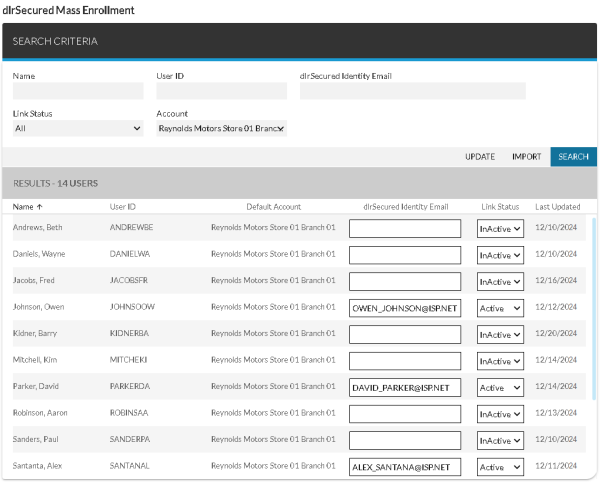
-
Click the IMPORT button.
The dlrSecured List Import window displays.
2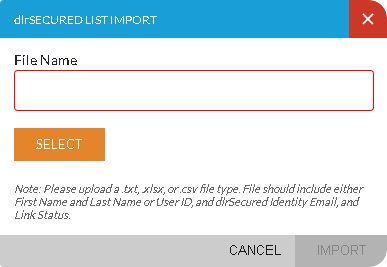
-
Click the SELECT button.
The Open window displays.
-
Select the file containing the Email addresses of the employees to enroll.
The file must include columns from left to right in the following order:
-
User ID
-or-
Last Name column and First Name column
-
dlrSecured Identity Email
-
Link Status
Note - When Active is entered in the Link Status column, the employee is enrolled in dlrSecured.
The Open window closes, and the name of the file displays in the File Name field on the dlrSecured List Import window.
-
-
Click the IMPORT button.
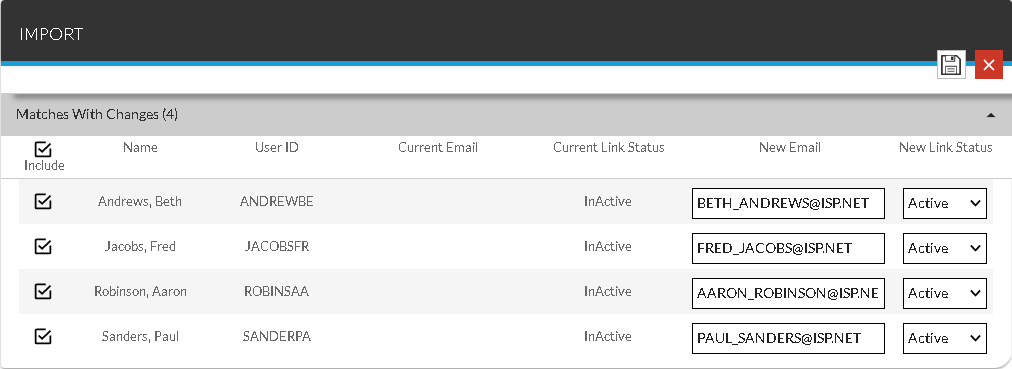
The dlrSecured List Import window closes, and the Import panel displays on the dlrSecured Mass Enrollment screen with the Email addresses automatically entered in the New Email column.
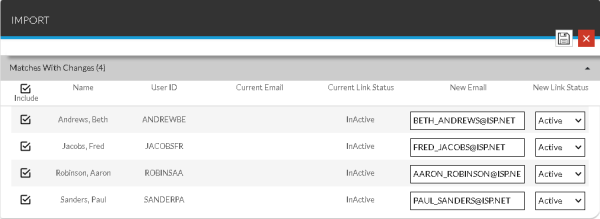
Note - If an employee's information should not be updated, clear the Include check box. In addition, if employee information does not match a user record, the No Matches section displays.
-
(Optional) Update the Email address in the New Email column for each employee that should be enrolled in dlrSecured.
-
In the New Link Status column, select Active for each employee to enroll.
-
Click the
 (Save) icon.
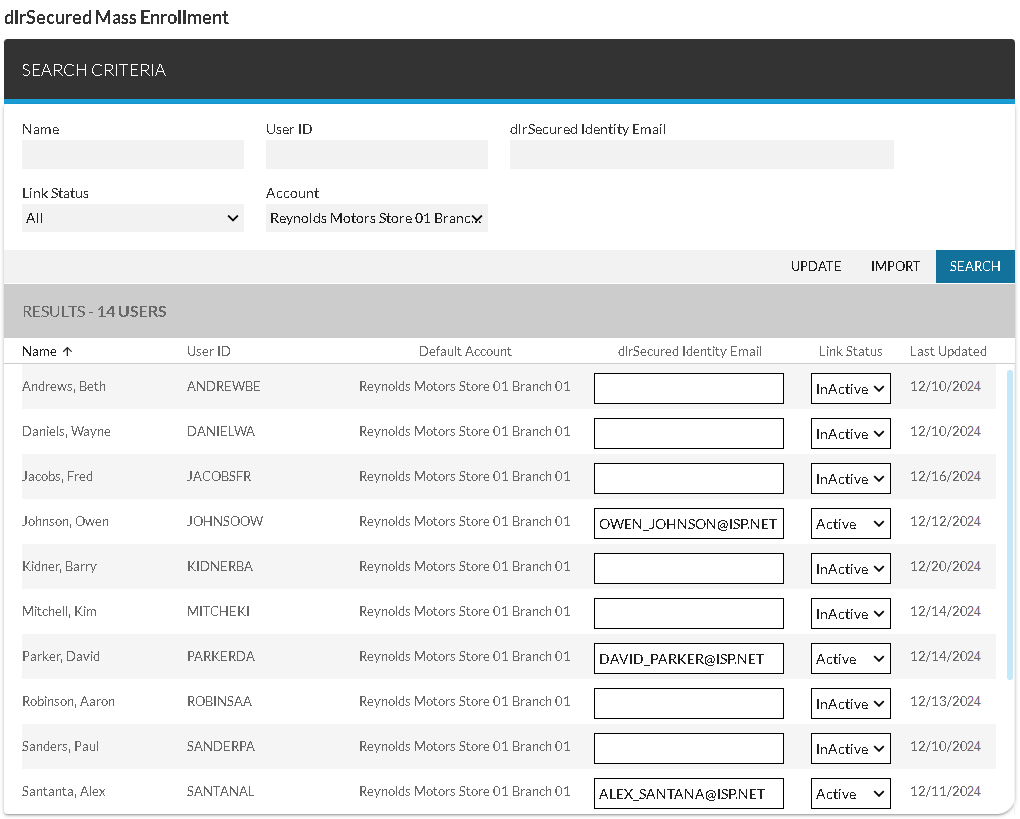
The employees are enrolled in dlrSecured, and the Search Criteria panel displays.
Click here for a list of products that may be mentioned in this help file.